


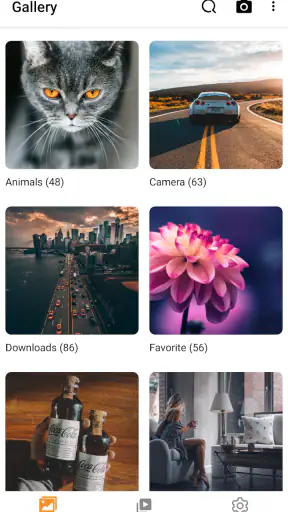
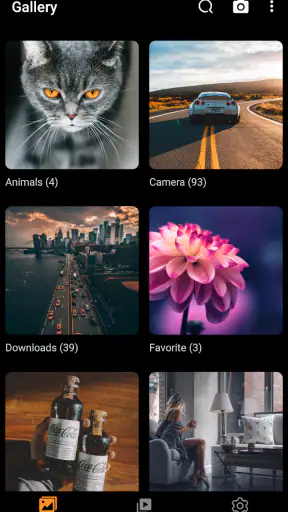
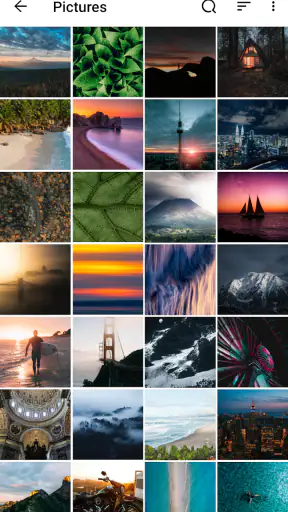
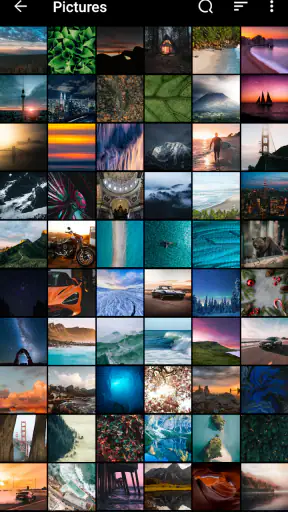
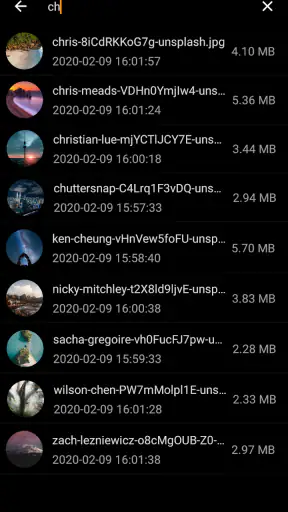

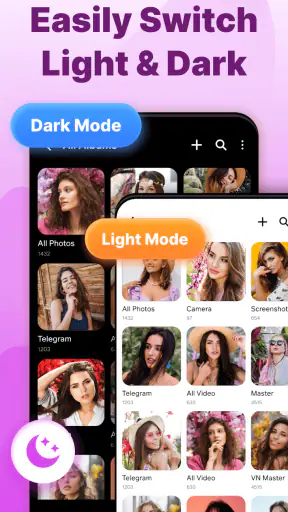
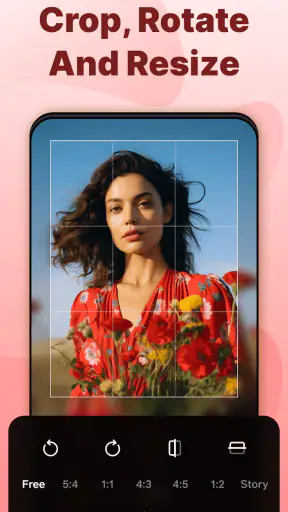
When I open a photo app, I want to find a picture quickly, understand what I am looking at, and share it without having to learn a complicated system first. Gallery - photo gallery, album aims at that everyday need. It is a free photography app from Gallery Pro - Photo Album Manager app, designed for viewing, organizing, and sharing photos and videos on Android. After spending time with it, I see its main appeal clearly: it gives your media a dedicated home instead of making you depend entirely on the basic gallery experience that came with the phone.
The app has a 4.3 average from around 143 thousand ratings, with over 5 million installs. Those figures suggest that it has found a sizeable audience, but they do not automatically make it right for everyone. My impression is that it works best for people who want a straightforward visual library, especially if their current gallery feels cluttered or difficult to browse. It is less convincing for someone who needs a highly specialized photo-management system, advanced editing, or a professional asset archive.
What to expect before you start browsing
The first thing to understand is the role this app plays. This is primarily a photo and video organizer, not a full editing studio or a cloud-storage replacement. Its value comes from presenting the media already on your device in a more approachable way, then helping you move from viewing to sharing with less friction. That distinction matters because many people install a gallery app expecting filters, retouching tools, or automatic backup. I would approach this one first as a cleaner front door to your local collection.
The interface is most useful when your phone contains a mixture of camera shots, downloaded images, screenshots, saved messages, and short videos. A default gallery can make all of those items feel like one long stream. A dedicated album manager gives you a better chance of separating the things you actually want to revisit from the temporary images you only needed once. The practical benefit is not dramatic after one picture, but it becomes noticeable when you are trying to locate a receipt, a travel photo, or a video from several weeks ago.
The app is free to install and is suitable for Everyone. It supports Android 8.0 and later, so it can be considered by people using older phones as well as newer devices. The current version is 2.7. I appreciate that broad compatibility because a gallery should not feel like a luxury reserved for the newest hardware. At the same time, older phones may already be working with limited storage, so I would still keep an eye on how much media is stored locally rather than assuming the app itself solves storage pressure.
There are in-app purchases ranging from $4.99 to $29.99 per item. That is worth keeping in mind before you settle into the experience. The free starting point makes it easy to test the basic workflow, but anyone who dislikes optional paid layers should check what is available in the version they install before treating the app as a permanent replacement for the phone’s original gallery.
The best first expectation is a calmer media library
I would not install this expecting it to magically repair a disorganized collection. A gallery can display and help manage what is already on the device, but the quality of the result still depends on the habits you bring to it. If every screenshot, duplicate download, and temporary image remains mixed together, no interface can completely remove that mess. The useful mindset is to let the app become the place where you make small, repeatable improvements.
For example, I would use it after a busy weekend of taking photos. Instead of scrolling through the entire camera stream every time I want to show someone one group of pictures, I would create a simple album for the trip or occasion, place the strongest images there, and leave the rest in the general collection until I decide what to do with them. That workflow avoids the common mistake of trying to organize hundreds of files perfectly in one sitting.
Setting it up without making the library harder to use
My advice for a first launch is to begin slowly. Let the app show you the available media, then spend a few minutes observing how it presents photos and videos before changing anything. New users often start tapping every organization option immediately, only to lose track of where a picture went. The safer approach is to identify one small group of images and use that as a test collection.
Choose something easy to recognize, such as recent holiday photos, screenshots from a project, or pictures of a pet. That gives you a clear reference point. If you create an album or adjust the way those items are arranged, you can immediately see whether the result matches your expectations. This is one of the simplest ways to avoid the anxiety that comes from reorganizing an entire phone without knowing how the app treats albums and the original files.
A useful distinction is between an album and a physical file location. In many gallery workflows, an album is a way to group or present media, while the original item remains stored on the device. I recommend checking what happens when you remove an item from an album before doing a large cleanup. The important question is whether you are only changing the grouping or deleting the underlying photo. That small pause can prevent an unpleasant surprise, particularly with family pictures or work documents photographed with the camera.
I also suggest starting with albums based on purpose rather than vague labels. “Important” becomes unhelpful very quickly because almost everything can feel important. Names such as “Tax receipts,” “Recipes to try,” “Apartment repairs,” or “Best family photos” make the collection easier to use later. This is a non-obvious advantage of a gallery manager: the naming decision becomes a retrieval tool. A good album title saves more time than repeatedly scrolling through thumbnails.
When you first inspect the library, pay attention to videos as well as still images. Videos can be easy to overlook because they occupy the same visual stream as photos, yet they are often the files that take up the most space and are hardest to locate when someone asks for one. I like to review them separately during setup, not necessarily to delete them, but to understand which recordings deserve an album and which are accidental or disposable clips.
Give yourself a small test before committing to a full cleanup
My recommended setup exercise is simple: find three photos and one video, place the photos into a meaningful group, open the video, and then try sharing one item. This tests the parts of the app that matter most in daily life without putting your entire library at risk. If that sequence feels natural, you already know enough to continue. If it feels confusing, you have discovered the problem while the test collection is still small.
Another practical habit is to avoid making dozens of nearly identical albums. A phone gallery becomes difficult to navigate when every event has multiple versions of the same label. I would rather maintain a few useful categories and occasionally refine them than create a new album every time I save two pictures. The app can support organization, but restraint is what keeps that organization useful.
Your first meaningful success should take less than a minute
The first result I would aim for is not a dramatic redesign of the library. It is finding one image, placing it where you can retrieve it again, and sharing it successfully. That small success proves the app is doing something valuable for you. Open a recent photo, check that it is the correct file, add it to an appropriate album if that suits your workflow, and use the sharing action to send it to one trusted contact or app.
This sequence also reveals an important trade-off. A gallery can make sharing easier to reach, but the final destination is still handled by the other app or service you choose. If a message application compresses an image, that is not necessarily a gallery problem. For images where quality matters, I would check the sharing options carefully and avoid assuming that every route sends the original file unchanged.
Here is a realistic everyday example. Imagine a family member asks for a picture of a document that you photographed last month. Instead of searching through every camera image, I would open the gallery, go to the album I created for household paperwork, confirm the image by opening it at full size, and share it directly. The meaningful improvement is not just speed. It is confidence that I am sending the right document rather than an almost identical photograph.
For a parent, another useful workflow is creating an album for school activities or children’s artwork. Rather than forwarding every image immediately, I can collect the best ones in one place and share a selected group later. For a small business owner, an album for product shots or invoices can separate practical work images from personal memories. These are modest systems, but they turn a general-purpose phone gallery into something closer to a personal reference cabinet.
I would also test the app with a photo that is not recent. Recent images are easy to find in almost any gallery. Older media is the real test of organization. Search through a previous month or an earlier event, then see whether your album structure helps you reach it. If the app makes older material easier to revisit, that is a stronger sign of long-term value than a pleasant first screen.
Where new users commonly get confused
The biggest source of confusion is assuming that every visible grouping changes the original storage arrangement. Albums, folders, and device locations can represent different things, and the safest habit is to read the wording around any move, remove, or delete action. I never recommend using a cleanup gesture on irreplaceable media until I have tested it with an unimportant screenshot.
Another point of friction is duplicates. A gallery can show the same-looking image more than once because copies may exist in different locations or because a file was downloaded again. I would not delete duplicates solely because the thumbnails look alike. First open them, compare their details, and decide whether one is a smaller copy, an edited version, or the original you still need. The few extra seconds are worthwhile when the images are personal or connected to work.
People also tend to confuse organizing with backing up. An album can make a photo easier to find, but it does not automatically mean that the image is protected if the phone is lost or damaged. If your pictures matter, keep a separate backup routine through the storage service or computer method you already trust. This app can be the viewing and sorting layer in that routine, but I would not treat it as the only copy of important memories.
Sharing can create a different misunderstanding. Seeing a photo clearly inside the gallery does not guarantee that a recipient will receive the same quality, file type, or metadata through every destination. For a quick social message, convenience may be enough. For a document, print, or client delivery, I would verify the sent result and choose a method designed for the required quality. That is a general limitation of mobile sharing, but it is especially important when the gallery makes the handoff feel effortless.
Paid options may also cause hesitation. Because the app is free to start but includes purchases from $4.99 to $29.99 per item, I would use the free experience long enough to identify the exact problem it solves for me. If I only need occasional viewing and sharing, the phone’s built-in gallery may remain sufficient. If I repeatedly rely on album management and prefer this interface, then considering an optional purchase becomes a more informed decision than paying simply because the screen looks polished.
When another option is the better fit
I would skip this app if my main goal is professional photo editing, detailed color correction, RAW workflow management, or a serious catalog with advanced tagging. A dedicated editor or desktop photo manager is better suited to those jobs. I would also look elsewhere if automatic cloud synchronization is the central requirement, because organization on the phone and remote backup are separate needs.
The built-in gallery is probably the better choice for someone who wants the fewest moving parts and already finds their current albums easy to use. A cloud-focused photo service is more appropriate for a person who changes devices often and wants their collection available everywhere. A file manager is preferable when the priority is precise control over folders and documents rather than a visual browsing experience. Gallery - photo gallery, album makes the most sense in the middle: more intentional than a basic camera roll, but less specialized than a professional archive.
Privacy-conscious users should also make their own comfort judgment before importing personal media into any new app. I would review the app’s access requests and device settings during installation, then decide whether the convenience matches the level of access I am comfortable granting. That is not a reason to reject it automatically, but it is a sensible step for a gallery because the library may contain sensitive family, financial, or work images.
The next step is a small routine, not a massive reorganization
Once the first album works, I would build a weekly habit around it. Spend a few minutes sorting the newest images, move only the useful ones into clear albums, and remove obvious clutter only after checking what each file is. This approach keeps the library manageable without turning photo organization into a chore. The app is most effective when it supports that rhythm rather than being opened once for a stressful all-day cleanup.
One workflow I particularly like is separating “keep,” “share,” and “reference” decisions. A photo can be worth keeping without being worth sharing. A screenshot can be useful for a month without deserving a permanent place among family memories. Album names based on these different purposes help me make decisions without deleting too quickly. They also make later sharing more deliberate because I am not selecting from a chaotic stream.
For travel, I would create the destination album before the trip, add photos as the journey continues, and use it afterward to select the images worth keeping. For home projects, I would use date or task-based albums so that progress photos remain in order. For receipts and documents, I would create a reference album and review it periodically, deleting items only when I know they are no longer needed. These workflows show the app’s practical strength: it can turn random camera output into collections with a clear purpose.
My overall view is positive, with reasonable limits. Gallery - photo gallery, album is approachable, free to try, compatible with Android 8.0 and later, and focused on a problem many phone owners actually have: too much media and not enough structure. Its 4.3 average and broad install base make it an established choice rather than an obscure experiment, while the Everyone rating keeps its audience wide. Still, I would not confuse it with backup software, a professional editor, or a complete digital-asset manager.
My recommendation is to install it when your current camera roll feels harder to use than it should. Start with one small album, test the difference between grouping and deleting, share one photo, and then decide whether the workflow deserves a permanent place on your phone. If that first success saves you from repeated scrolling and makes an important image easier to retrieve, the app is doing exactly the job I would want from a practical gallery manager.


